
Power BI Desktop
Create a DSN linked to an Indexima Cluster
ODBC-Create a DSN linked to Indexima Engine
Connecting to an Indexima cluster using 'MS PowerBI'
a. Choose an Indexima source
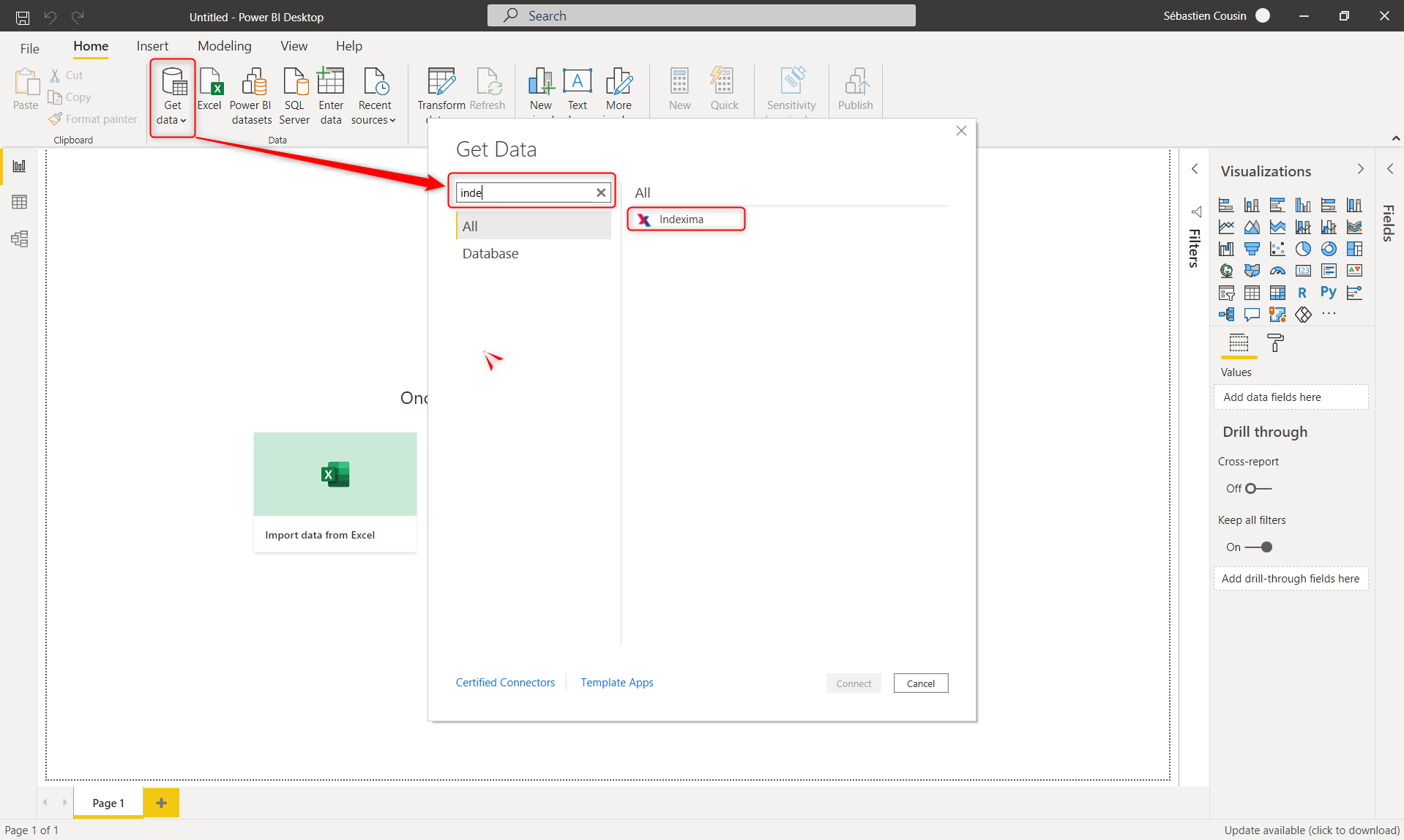
- Select the icon "Get Data". A list of data-sources will appear.
- Start to type out "Indexima" in the search box and the INDEXIMA connector appears. Select it and click on the "Connect" button.
b. Skip Warning
Power BI may display a dialog box. Tick "Don't warn me again" and press continue.
c. Fill in the connection information
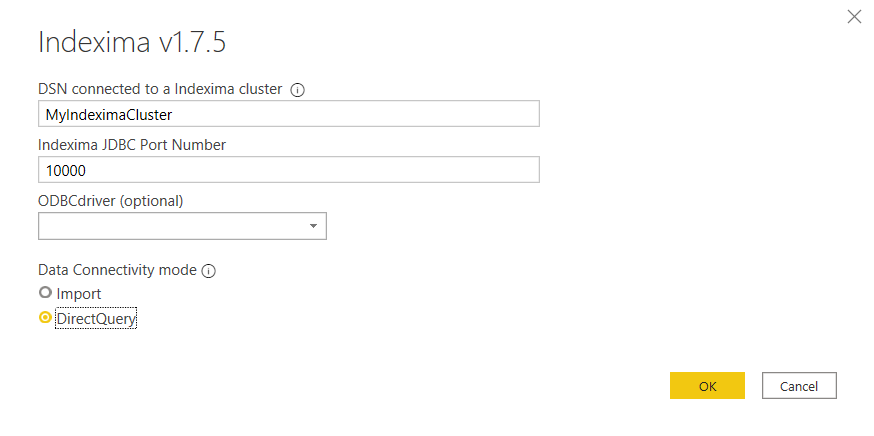
- DSN Connected: Copy/paste the DSN name you've created in the previous step
- Indexima JDBC Port Number: Enter any value (This field is not used for DSN connection)
- ODBC Driver: Leave it blank
- Data connectivity Mode: Make sure you select DirectQuery
Press the OK button.
d. Enter Credentials
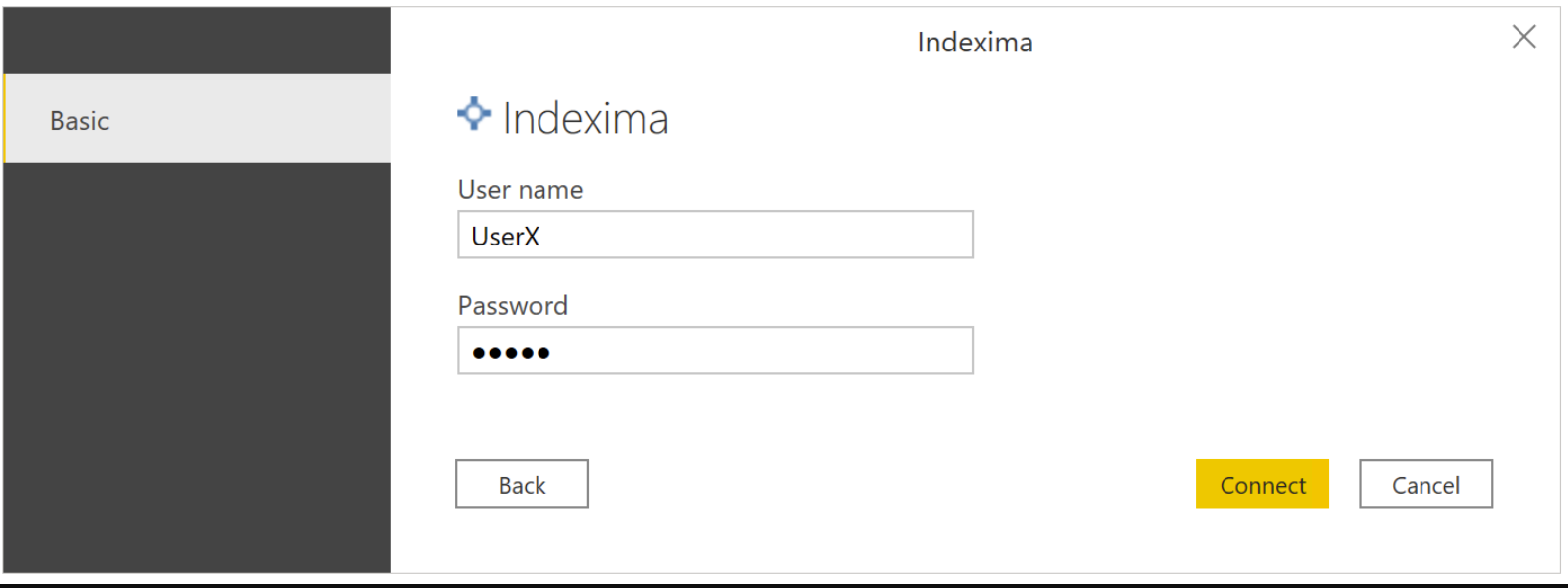
Enter the INDEXIMA credentials and click on the Connect button.
e. Select Tables or views
MS Power BI opens a window to browse and select tables. Once a table is selected, the content of the table is displayed on the right panel as shown below:
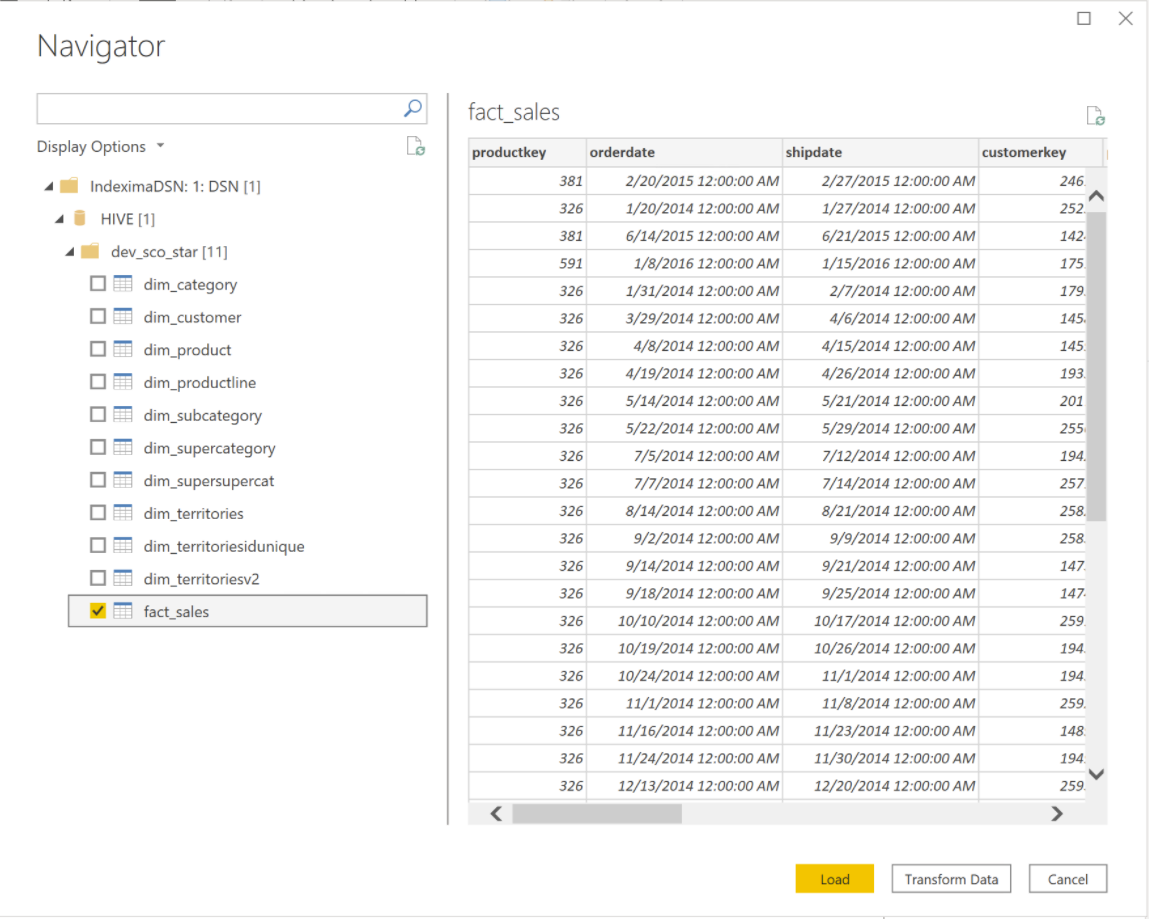
Click on the Load button.
f. Design report
Now you are able to design your own report.