
Data Catalog
Overview
This page displays the Indexima memory usage per table, hyperindex, and nodes. You can drill down up to the memory consumption at the node level.
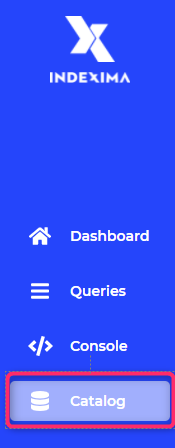
Access Data Catalog
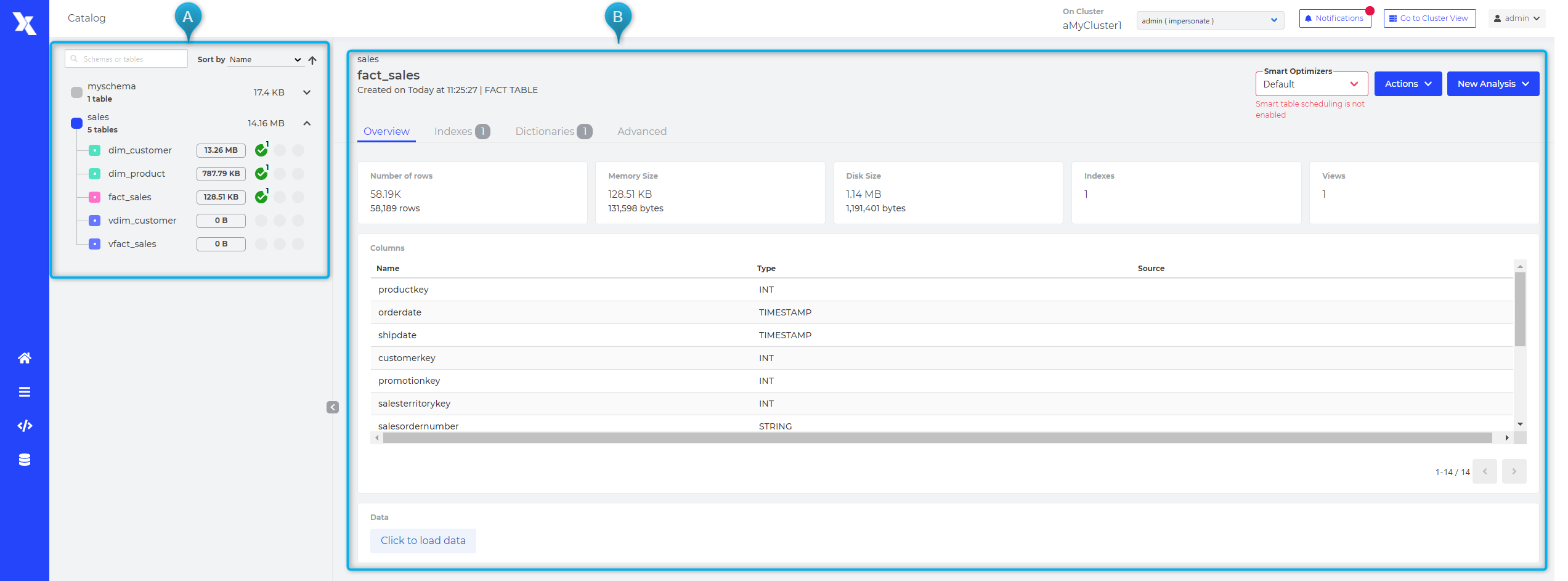
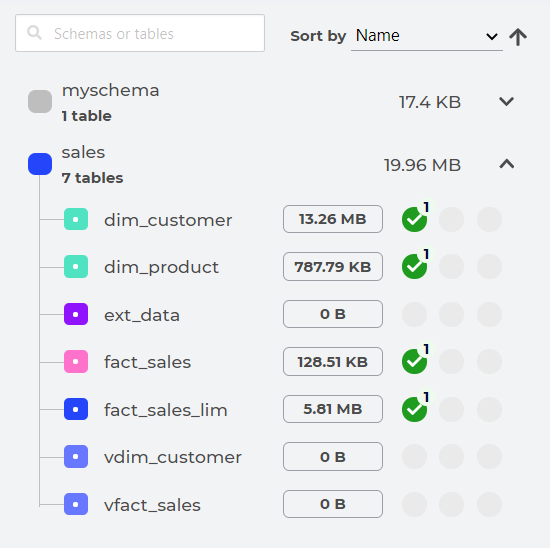
Left Panel: Schemas & Tables
- Dataspace types
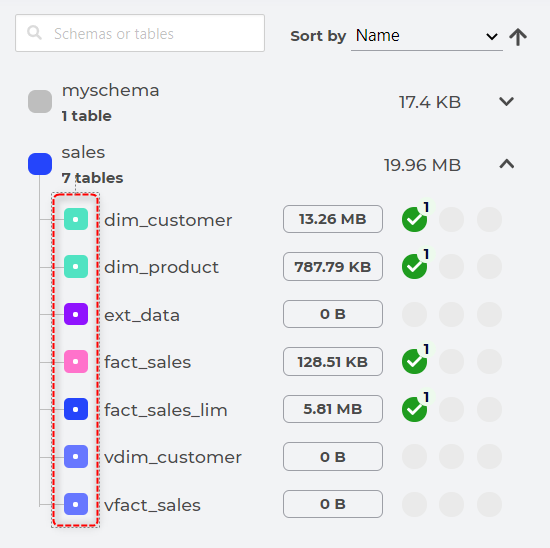
Color depends on the type of the table
| Color | Table type |
|---|---|
| Dimension table |
| Fact table |
| External Table |
| Limited Table |
| View |


- Total Size
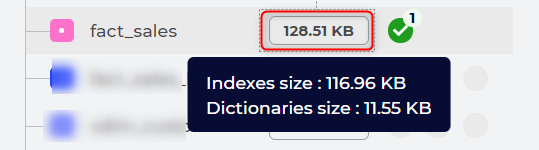
Memory is used by the hyperindex in RAM. If you hover your cursor over the size, you get details on dictionaries and indexes size.
- Index status

| Color | Index status | Comments |
|---|---|---|
| (Number of) loaded indexes | |
| (Number of) unloaded indexes | Unloaded indexes free up memory. They would need to be loaded in order to be used by a query. |
| (Number of) on error indexes | Indexes on error can't be used. They must be deleted. |


Right Panel: Table Detail
Overview
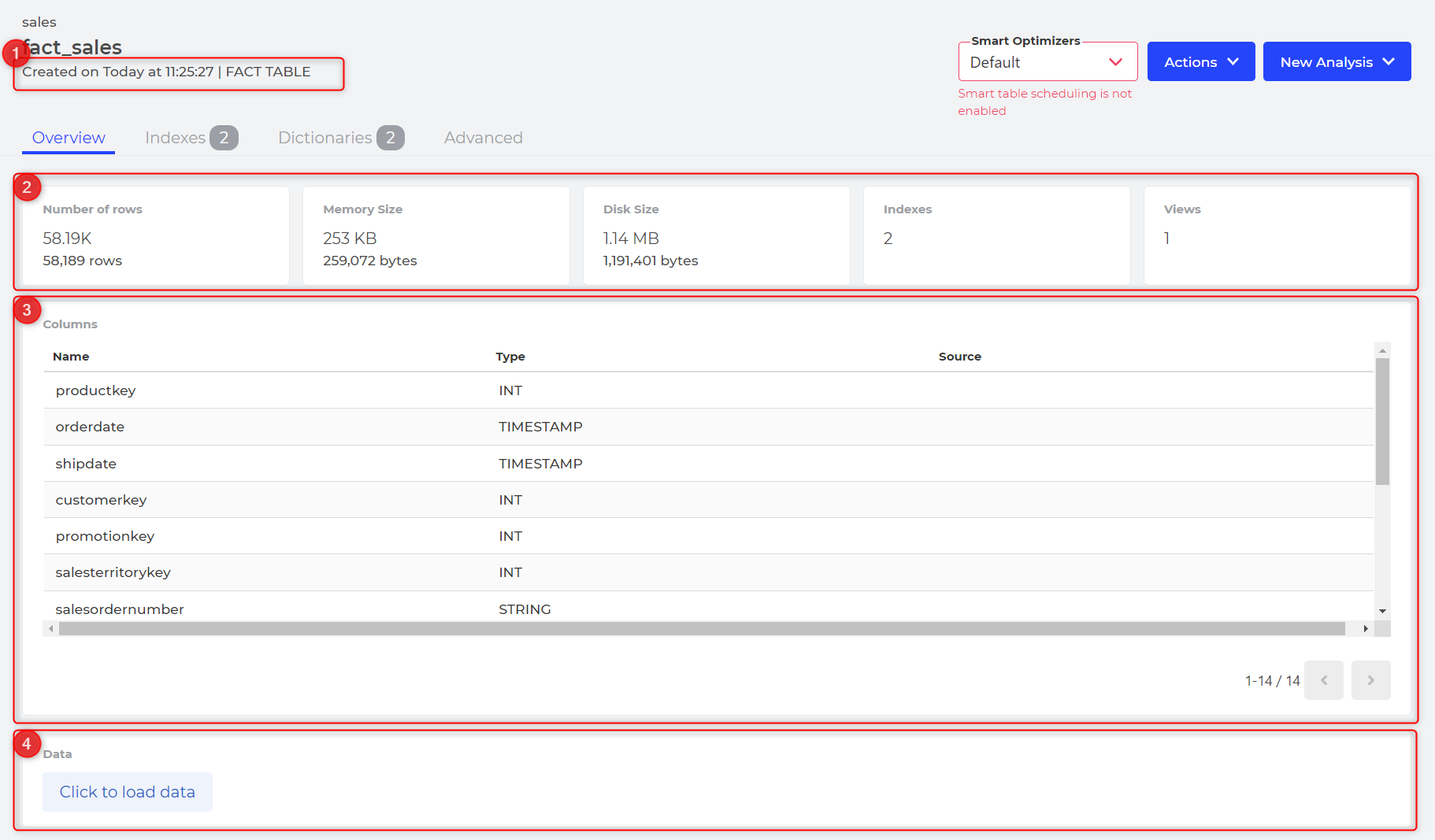
The overview displays:
- Block 1:
- Table Table
- Creation Date
- Block 2:
- row number
- Memory size
- Disk size
- Number of existing indexes within the table
- Number of views that used the table
- Block 3:
- list of all columns and their datatype
- Block 4:
- a button to load & view the first 100 lines of the tables
Indexes
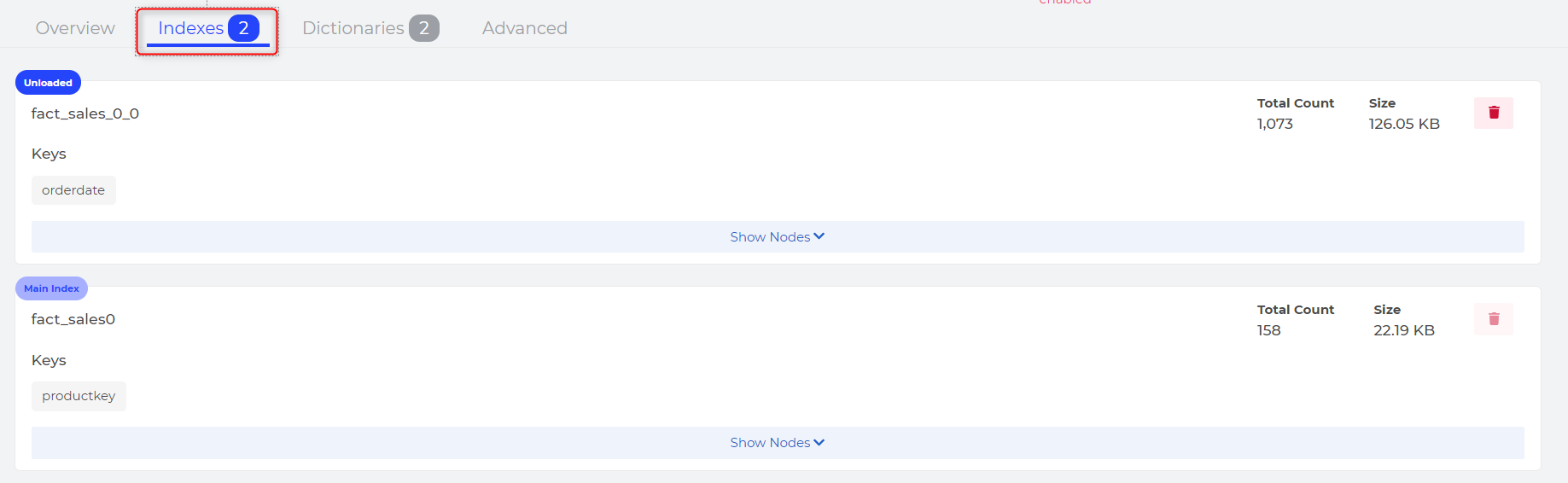
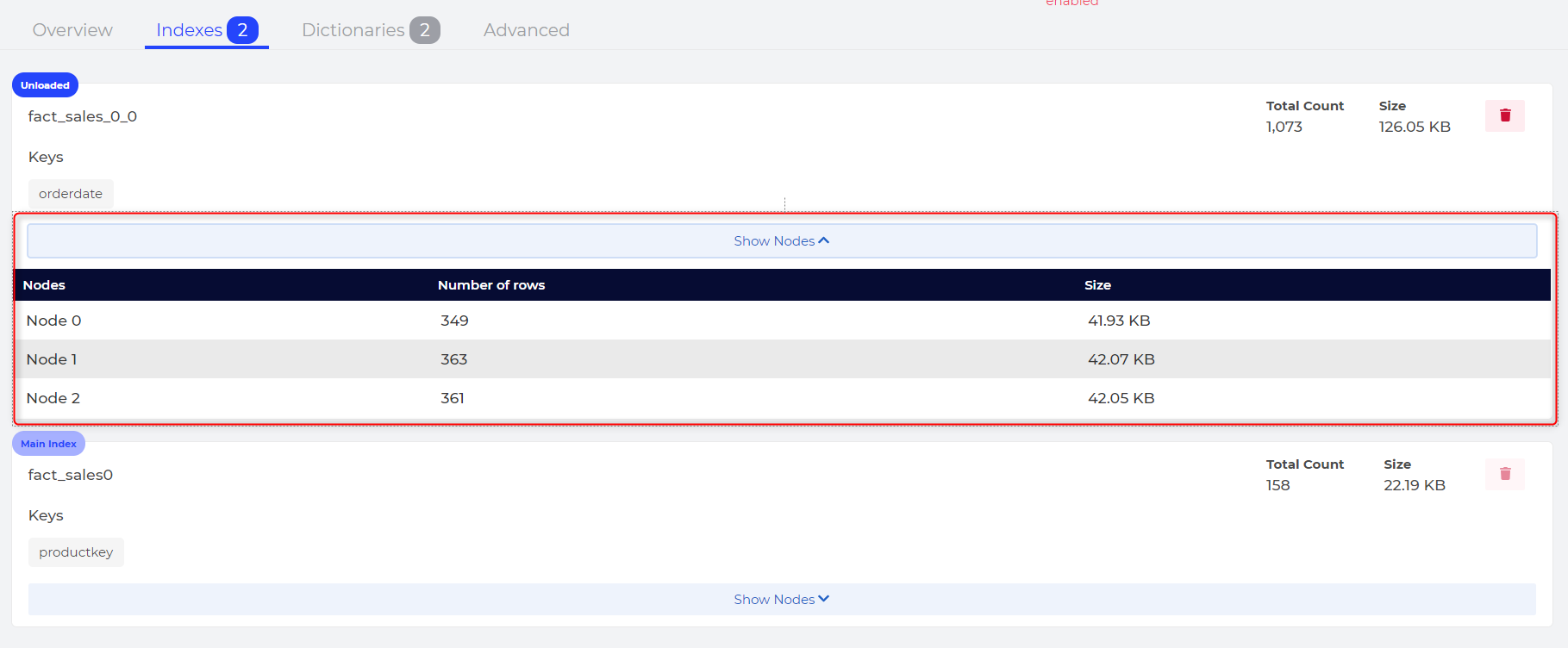
- Total Count: The total number of lines within the index
- Size: The memory size of the index
When possible, the user can delete one index by clicking on the bin icon.
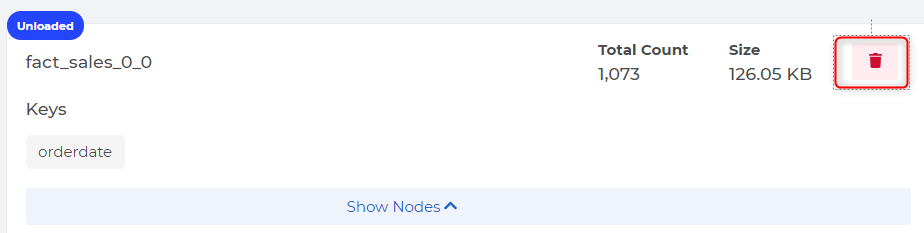
Details per node
By clicking on Show Nodes, the user can view the split of the two metrics (Total Count & Size) per node.
Dictionaries
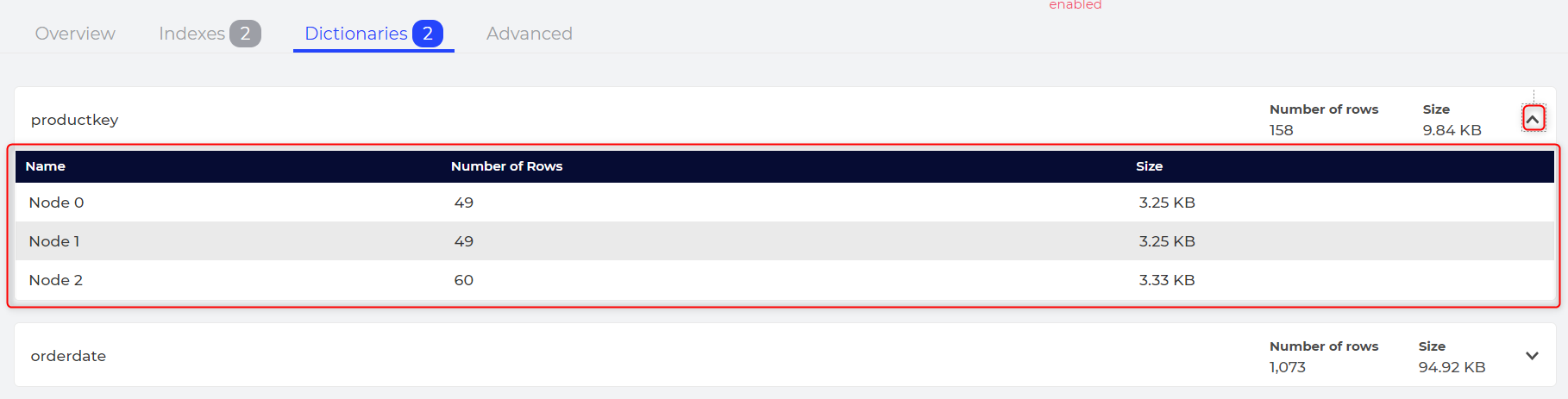
List of all dictionaries used in the indexes:

Detail per node
By clicking the left arrow, the user can view the split of two metrics (Total Count & Size) per node.
Advanced
This panel displays all filters applied to the table. For more details, please visit: ADD FILTER.
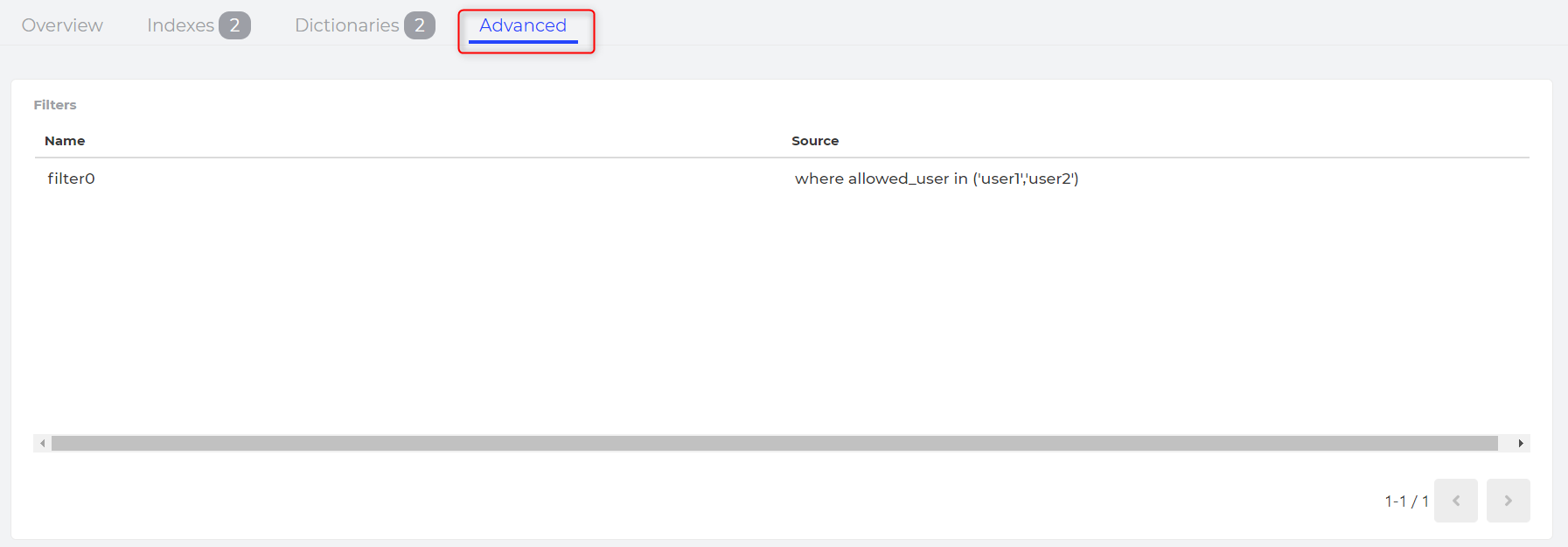
On External tables, the panel also displays the JDBC link towards the data source table

Smart Optimizers
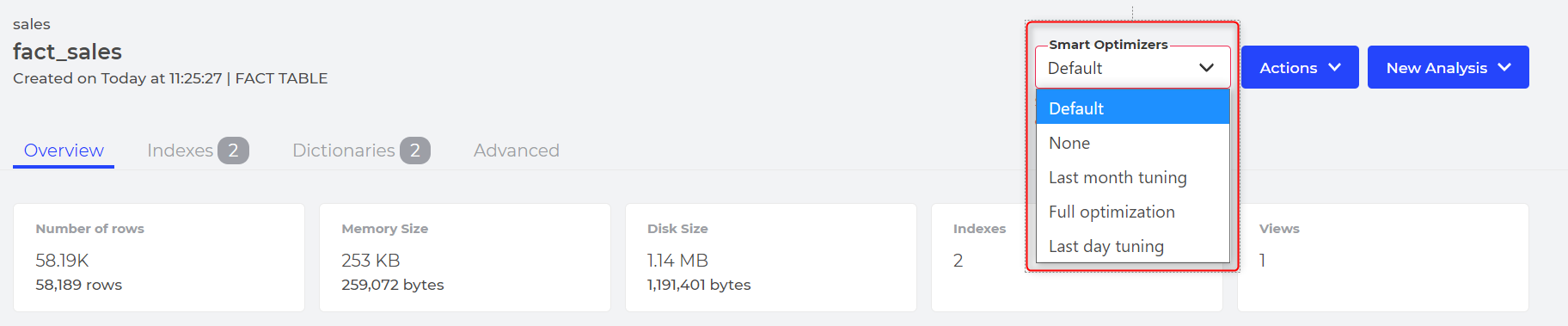
For more details, please visit: Smart Tables
Actions
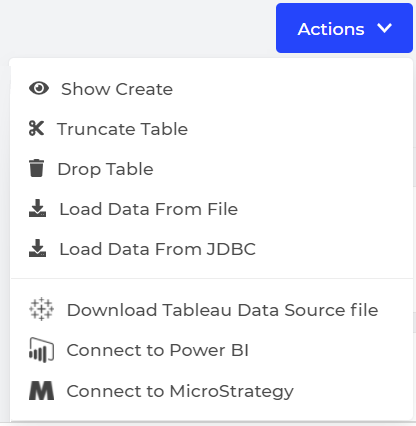
- Show Create: the system launches a SQL Command
SHOW CREATE TABLE my_tableand pastes the command in the clipboard. - Truncate table: The system will empty the table by launching a SQL command
TRUNCATE TABLE my_table. A confirmation is asked to the user before executing the command. - Drop Table: The system launches a SQL command
DROP TABLE my_table. A confirmation is asked to the user before executing the command. - Load Data From File: This helps the user to load data from files through a user-friendly interface. For more details, please visit Load files using the "Load from File" Assistant.
- Load Data From JDBC: This helps the user to load data from JDBC sources through a user-friendly interface. For more details, please visit Querying a database for Data load via Assistant.
New Analysis
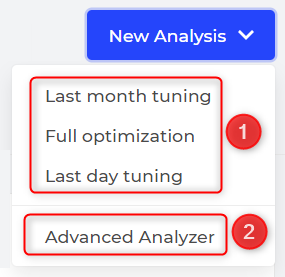
- Last Month tuning/ Full Optimization / Last Day tuning: Launch analysis using the chosen parameter. For more details, please visit Optimize Table from Table overview.
- Advanced Analyzer: A user interface that allows users to choose parameters for this optimization. For more details, please visit Indexima Advanced Analyzer.